
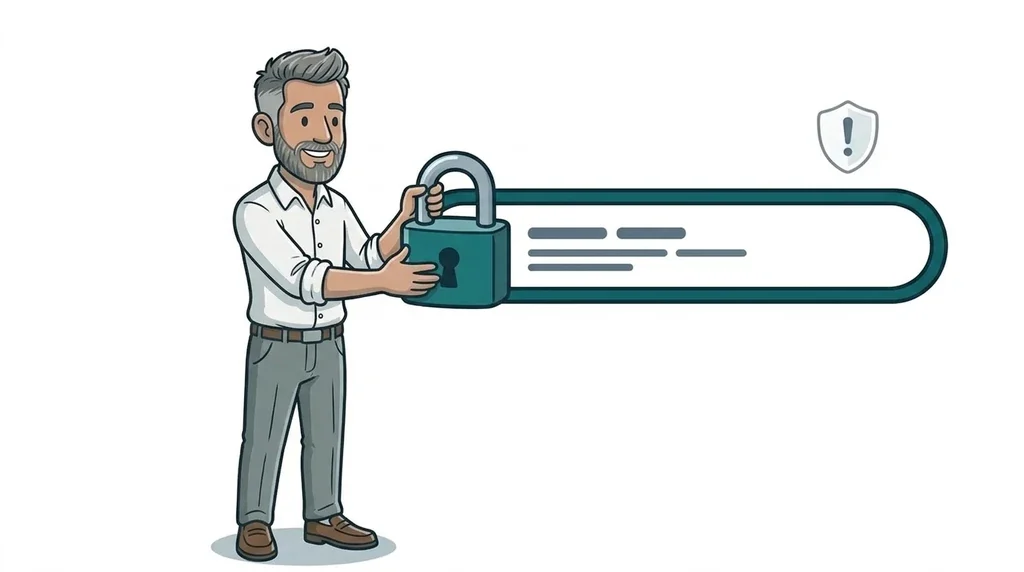
Google Chrome now asks every user for permission before it opens a website that cannot load securely over HTTPS. Google confirmed on 21 October 2026 that the setting, called Always Use Secure Connections, is switched on by default for all Chrome users. If any step of the journey to your website still relies on plain HTTP, a new customer will see a full-page warning with a Back button before they see a single word of your homepage.
Most modern business websites will be fine. The risk sits with older sites, forgotten domains and the redirects in between, and the people who see the warning are exactly the ones you are trying to win: first-time visitors.
What has changed in Chrome?
For years Chrome marked insecure pages with a small "Not secure" label in the address bar. The page still loaded, and most people ignored it. The new Chrome HTTP warning is different. It appears before the page loads and asks the visitor whether they really want to continue.
The key facts:
- The setting: Always Use Secure Connections, found at chrome://settings/security.
- The version: Google first announced the plan for Chrome 154. Chrome 154 reached the stable channel on 22 September 2026, and Google said on 21 October that the change has now rolled out to all users.
- The earlier trial: Chrome switched it on earlier in 2026 for people using Enhanced Protection in Safe Browsing, before extending it to everyone.
- How often it shows: once a visitor approves an HTTP site, Chrome stays quiet until they have not visited for at least two weeks.
- Where it does not show: local addresses such as home routers and office intranets.
- How common it is: Google says early data shows nearly 95% of desktop Chrome users see no HTTP warnings in a typical week, and less than 1% see three or more.
That last figure is reassuring for the web as a whole. It is less reassuring if your website happens to be in the small group that still triggers it.
Why first-time customers see it and you do not
Here is the catch that makes this easy to miss. Chrome remembers a person's decision, so regular visitors who click through once rarely see the warning again. You visit your own website all the time, and so do your loyal customers.
The person who sees it is the stranger. Someone who found you on Google, scanned the QR code on your van, typed the address from a leaflet or tapped a link a friend sent on WhatsApp. They have no reason to trust you yet, and a browser telling them the connection is not secure is a very easy reason to tap Back and choose the next business on the list.
Where HTTP still hides on small business websites
Your homepage might load perfectly over HTTPS and you could still trigger the warning. Google's guide for site owners explains that Chrome warns if any step on the way to your site is insecure, not just the final page. The usual culprits:
- The version without www. If your site lives at www.yourbusiness.co.uk but the plain yourbusiness.co.uk has no HTTPS set up, anyone who types the short version gets a warning before the redirect kicks in.
- Second domains. Many businesses own an old name, a .com alongside a .co.uk, or a domain bought for a campaign. If those forward to your main site through a basic domain forwarding service without HTTPS, every visit through them can trigger a warning.
- Old subdomains. A shop., booking. or blog. address set up years ago and never updated.
- Tracking and short links. Redirect links used in emails, printed QR codes or adverts. Each hop in the chain has to support HTTPS. Google warns that several insecure redirects can produce several warnings in a row.
- Third-party pages. Booking, ordering or payment pages hosted by a supplier, linked from your site with an old http:// address.
- Expired certificates. These already show a separate security error, and that is not changing. It is still worth checking your certificate renews automatically.
The fix is rarely dramatic. It usually means adding HTTPS to a missing address, tidying a redirect so it goes straight to your secure site, or asking a supplier for an updated link.
Does this affect my Google rankings?
The Chrome warning is a browser feature, not a ranking change. But the two are connected. Google's Search Console HTTPS report help page says Google strongly recommends HTTPS and prefers to index the HTTPS version of a page when both exist. And if new visitors bounce off a warning screen, you lose the enquiry whatever your ranking.
If you already use Search Console, open the HTTPS report. It counts how many of your indexed pages Google holds on HTTP versus HTTPS and explains why any secure version could not be indexed. If you have not set Search Console up yet, our beginner's guide to Search Console metrics walks you through it.
A 20-minute check for your own website
Your own browser is the worst test because it has visited your site so often. Use a private or incognito window, or a phone you do not normally use, and work through this list:
- Turn the setting on. Google recommends enabling Always Use Secure Connections at chrome://settings/security so you see what new visitors see.
- List every address you own. Your main domain with and without www, any other domains, any subdomains, and the website link on your Google Business Profile and social media profiles.
- Type each one with http:// at the start. Each should land on your https:// site with no warning screen.
- Click your booking, payment and contact links. Make sure each one opens over HTTPS.
- Scan your printed QR codes. Van livery, flyers and business cards are the hardest things to change later, so test them first.
- Check Search Console's HTTPS report if you have it.
If anything fails, write down the exact address. That is all your web developer or hosting provider needs to fix it. Google's guide also points out that Safari, Firefox and Edge already try HTTPS first and offer optional warning modes, so fixing this for Chrome helps every visitor.
What this means for your business
Chrome keeps tightening the rules, and with its move to faster releases (covered in our post on how Chrome just sped up updates) changes like this land sooner than they used to. Security is also the reason we keep pushing clients to stay on top of updates, as we explained after the WordPress security update in September.
A modern website on decent hosting should have HTTPS on every address by default, with one clean redirect to the secure version. If yours was built years ago, has changed hands, or nobody is quite sure who manages the domain any more, that is the version most likely to have a gap. Our website design and development service includes SSL and security essentials, with optional managed hosting, so the padlock is sorted from day one. If you run ads, our digital paid marketing service can make sure your tracking links never send paid clicks to a warning page.
FAQ
What is the Chrome HTTP warning?
It is a full-page message Chrome shows before opening a public website that cannot load over HTTPS. The visitor has to choose to continue or go back. It replaces the old approach of only showing a small "Not secure" label once the page had loaded.
Why does Chrome say my website is not secure?
Usually because your site, or a step on the way to it, does not support HTTPS. Common causes are a missing certificate on the non-www version of the domain, an old domain forwarding service, or an http:// link to a third-party booking page.
Can visitors turn the warning off?
Yes. Anyone can switch off Always Use Secure Connections in Chrome settings, but you should not rely on that. Most people will simply leave and find another business.
How do I fix the Chrome HTTP warning on my site?
Make sure every address you own supports HTTPS and redirects straight to your secure site. If you do not manage your own server, your hosting provider can usually enable HTTPS for you, often with a free certificate.
Next step
You are busy running your business, and keeping up with every browser change is not your job. If you would like someone to check your website, domains and links for this, get in touch. And if your current site is overdue a rebuild anyway, the easiest first step is our free website offer.
No comments yet